
Video Encoding Demystified
What Really Happens When You Record a Video
You made something you love. Now there’s a little dialog box asking questions you didn’t sign up for. Codec? Container? Bitrate? Chroma subsampling? You just wanted a video file.
I went down this rabbit hole while building Chromatose ’s built-in video recorder. I’m a software engineer, and even I found the world of video formats needlessly confusing - a thick fog of overlapping acronyms where every answer assumed you already knew three other things. So I wrote the guide I wish I’d had. No computer science degree required. By the end you’ll understand what every setting in that export dialog actually does, and you’ll know exactly which one to pick.
The one idea that matters most: the job decides the format
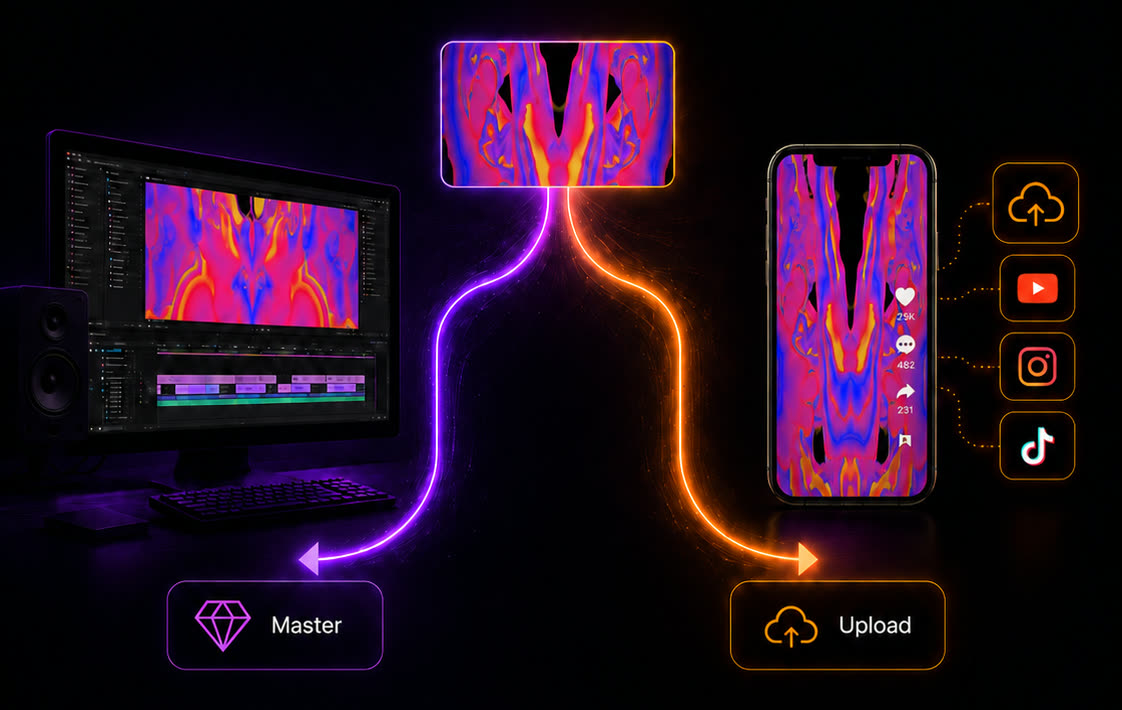
If you take one thing from this article, make it this: what your video is for decides which format you should use. Nail that, and most of the other settings fall into place on their own.
There are really only two common jobs:
- A pristine master - footage you’ll edit further, archive, or simply want at the highest quality possible. For this, reach for ProRes : a visually lossless format that throws away almost nothing. The files are big, but the quality is about as close to untouched as you can practically get. In Chromatose, this is the “Studio (ProRes)” Video Quality option.
- A final upload - the version headed straight to YouTube, Instagram, or TikTok. For this, reach for HEVC (also called H.265): a remarkably efficient format that produces a small file every platform happily accepts, while still looking great. In Chromatose, this is “Social (HEVC).”
Using Chromatose? Here’s all you actually touch
This article is about video encoding in general, but if you’re just exporting videos from Chromatose, this section is for you.
Chromatose preselects every technical encoding setting for you - correctly - so you never have to think about the acronyms below. There are only three things you ever choose:
- Render mode - 8-Bit SDR, 16-Bit SDR, or 16-Bit HDR, set once in the Graphics Engine settings. This controls how rich the color is (we’ll get into color spaces later).
- Frame rate - 60fps by default, and recommended, for the smoothest motion.
- Video Quality, on export - Studio (ProRes) for a master or further editing, or Social (HEVC) for uploading.
The tradeoff is always file size - the better the quality, the bigger the file.

That’s the entire decision. Codec, container, color space, transfer function, bit depth, subsampling, bitrate - all handled for you (the full recipe for each render mode is laid out near the end, if you’re curious). The rest of this article is the why behind it all - genuinely worth understanding, but never something you have to configure by hand.
First, the one distinction that clears up half the confusion
Almost everyone mixes these two things up, and once you stop, video formats get dramatically less complicated.
A container is the box. A codec is what’s inside the box.
When you see a file ending in .mp4 or .mov, that’s the container - the wrapper that holds everything together: the video stream, the audio stream, subtitles, timing data, thumbnails. The two you’ll meet constantly are MP4
(the universal standard) and MOV
(Apple’s QuickTime container, which MP4 was actually based on). For most uploads they’re interchangeable; ProRes almost always lives in a .mov.
The codec is the clever bit of math inside that box that squeezes the video down so it isn’t astronomically huge. “Codec” is short for coder-decoder - it encodes the video when you export, and decodes it when someone plays it back. H.264 and HEVC are codecs.
So a single .mp4 file could contain H.264 video or HEVC video. Same box, different engine inside. The container tells you almost nothing about quality. The codec - and the settings you fed it - tells you everything. Keep that separation in your head and you’re already ahead of most people.
The stuff you already kind of know: resolution and frame rate
Two settings you’ve definitely seen, just so we’re on solid ground before the deep end.
Resolution is how many pixels make up each frame. 1080p (“Full HD”) is 1920x1080. “4K” is 3840x2160 - four times the pixels of 1080p. “8K” is 7680x4320. More pixels means more detail and a bigger file.
Frame rate , measured in frames per second (FPS), is how many of those still images flash by each second to create the illusion of motion. 24fps is the cinematic look. 30fps is standard for social video. 60fps is smooth, fluid, great for fast motion. More frames also means a bigger file. Chromatose renders at 60fps by default - the smoothest option, and the one to stick with so all that fast, fluid motion stays crisp.
Nothing controversial here. The reason these are easy is that they map onto things you can see: sharpness and smoothness. The settings that follow are harder only because they’re invisible until they go wrong.
The big idea: compression, and why every upload loses a little
Here’s the uncomfortable truth: almost every video you’ve ever uploaded has thrown away data, and there’s no setting that fully prevents it.
Raw, uncompressed video is gigantic. A few seconds of uncompressed 4K can be larger than an entire HD movie. Completely impractical to store, let alone stream. So codecs compress it - and the everyday ones do it by being lossy: they permanently discard information your eyes are least likely to miss. Compression artifacts are what’s left behind when they guess wrong: blocky patches in dark scenes, color banding across what should be a smooth gradient sky, a faint shimmer (“mosquito noise”) around sharp edges.
This matters for an honest expectation: you cannot get a truly pristine result out of a lossy delivery codec. Crank the quality as high as it goes and you’ve made the loss small - small enough that nobody will notice on a phone screen - but it’s never zero. The only way to get genuinely untouched quality is to avoid lossy compression entirely (more on that, and ProRes, near the end).
This isn’t a flaw to be angry about. It’s the trade that makes video on the internet possible at all. The skill is simply knowing when a little loss is fine (uploading) and when it isn’t (mastering).
There’s a subtlety worth knowing if you make the kind of work Chromatose does. These codecs were tuned for filmed footage - faces, skin tones, landscapes, the soft gradients of the real world. Feed them sharp, abstract, high-contrast visuals full of fine lines, hard edges, and rapid motion, and they struggle a lot more. The compression simply wasn’t optimized for that, so artifacts show up sooner and you have to work harder to get a clean render. (For a genuinely eye-opening visual breakdown of why this happens, this video is well worth a watch.)
Which leads to an honest expectation worth setting: a recorded, compressed clip will never look quite as good as the live, uncompressed visuals running directly in Chromatose on your device. What you see moving in the app is the real, pixel-perfect thing. The export is a faithful copy - but a compressed one. That’s not a Chromatose quirk; it’s true of every tool that records to a video file.
Meet the codecs: H.264, HEVC, AV1, and VP9
The four names you’ll actually run into, and what they’re good at.
H.264 (also called AVC)
The reliable workhorse. H.264 has been around since 2003 and plays everywhere - every phone, browser, TV, and editing app made this century. In practice it’s an 8-bit-color format (more on bit depth shortly), which is plenty for standard video. If you want maximum compatibility and zero surprises, H.264 is the safe default.
HEVC (also called H.265)
The efficient successor. HEVC achieves roughly the same quality as H.264 at about half the file size - a real win for 4K and for anything you’re sending over a network. The catch: it’s heavier to encode (your device works harder and longer to export it), and it can support higher-quality color, which is why it’s the codec of choice for HDR. Modern Apple devices handle it beautifully, which is exactly why it became Chromatose’s recording format.
Both H.264 and HEVC are lossy. Neither gives you a pristine export. HEVC just makes the unavoidable loss cheaper in file-size terms.
AV1 and VP9
The new-school options. VP9 (from Google) is what a lot of YouTube streams to you. AV1 is its successor and is even more efficient than HEVC - but it’s extremely slow to encode and not yet universal on every device. You probably won’t export to these yourself anytime soon; they’re mostly used by big streaming platforms to save bandwidth. Worth recognizing the names, not worth losing sleep over.
| Codec | Best for | Trade-off |
|---|---|---|
| H.264 / AVC | Maximum compatibility | Larger files than newer codecs |
| HEVC / H.265 | Small 4K & HDR files | Slower to encode |
| AV1 | Best efficiency | Very slow encode, not universal |
| VP9 | Web streaming (YouTube) | Google ecosystem, rarely a manual export |
Bitrate: the quality knob that actually moves the needle
If resolution is how many pixels and frame rate is how often, bitrate is how much data you spend describing them. It’s measured in megabits per second (Mbps), and it’s the single biggest lever on how good a compressed video looks.
Low bitrate means a smaller file and more artifacts. High bitrate means a bigger file and fewer artifacts. That’s the entire trade. A 4K video at a tiny bitrate will look worse than 1080p at a generous one - resolution without the bitrate to back it up is a hollow promise.
You may also see two ways of spending that budget:
- VBR (variable bitrate) spends more data on complex, fast-moving scenes and less on simple, still ones. Smarter quality-per-megabyte - the usual choice for files you upload.
- CBR (constant bitrate) holds a steady data rate the whole way through. More predictable, which matters for live streaming.
One reason your export settings feel constrained: the place you’re uploading to often sets the ceiling. Instagram, for example, tops out around 25 Mbps for video. Here’s the part that catches people out: if you hand a platform a file with a higher bitrate (or resolution) than it supports, it doesn’t politely decline - it quietly re-compresses your video for you, on its own terms, with no warning. Now your footage has been through the lossy wringer twice - once by you, once by them - and double compression piles artifacts on artifacts. The result can look genuinely rough. So for uploads, match the platform’s limits rather than exceeding them. Going over doesn’t buy you quality; it silently costs you quality.
(If you ever see a codec “level” like 5.1 in advanced settings, it’s just a shorthand for a ceiling on resolution + frame rate + bitrate that a player promises to support. For example, one common level covers full 4K at 60fps up to about 40 Mbps. You rarely need to touch it.)
One more term you might glimpse and can safely skim past: keyframes, or GOP (Group of Pictures). A codec doesn’t store every frame in full - it saves an occasional complete frame, then in between records only what changed from one frame to the next. It’s a big part of why compression works, but the defaults are almost always right, so you can move on.
Color: the part nobody explains well
There are really four separate questions hiding inside “color,” and people blur them together constantly.
1. Color space (which colors exist)
A color space defines the range of colors a video is allowed to use - its gamut . The ones you’ll meet:
- sRGB and Rec. 709 - effectively the same set of colors. sRGB is the name you see on the computer/web side; Rec. 709 is the name on the HD-video side. They share the same primary colors and white point and differ only slightly in their tone curve. This is the standard, safe, looks-right-everywhere color space.
- Display P3 - Apple’s variant of DCI-P3, the digital-cinema color gamut. (Display P3 and DCI-P3 describe the same set of colors; Display P3 just pairs that gamut with a screen-friendly white point and the familiar sRGB tone curve.) It’s the wider gamut your iPhone and iPad screens actually use - noticeably richer reds and greens than sRGB.
- Rec. 2020 (a.k.a. BT.2020) - a much wider gamut built for 4K/8K and HDR. It can describe colors most current screens can’t even display yet. It’s the foundation for the Rec. 2100 HDR standard.
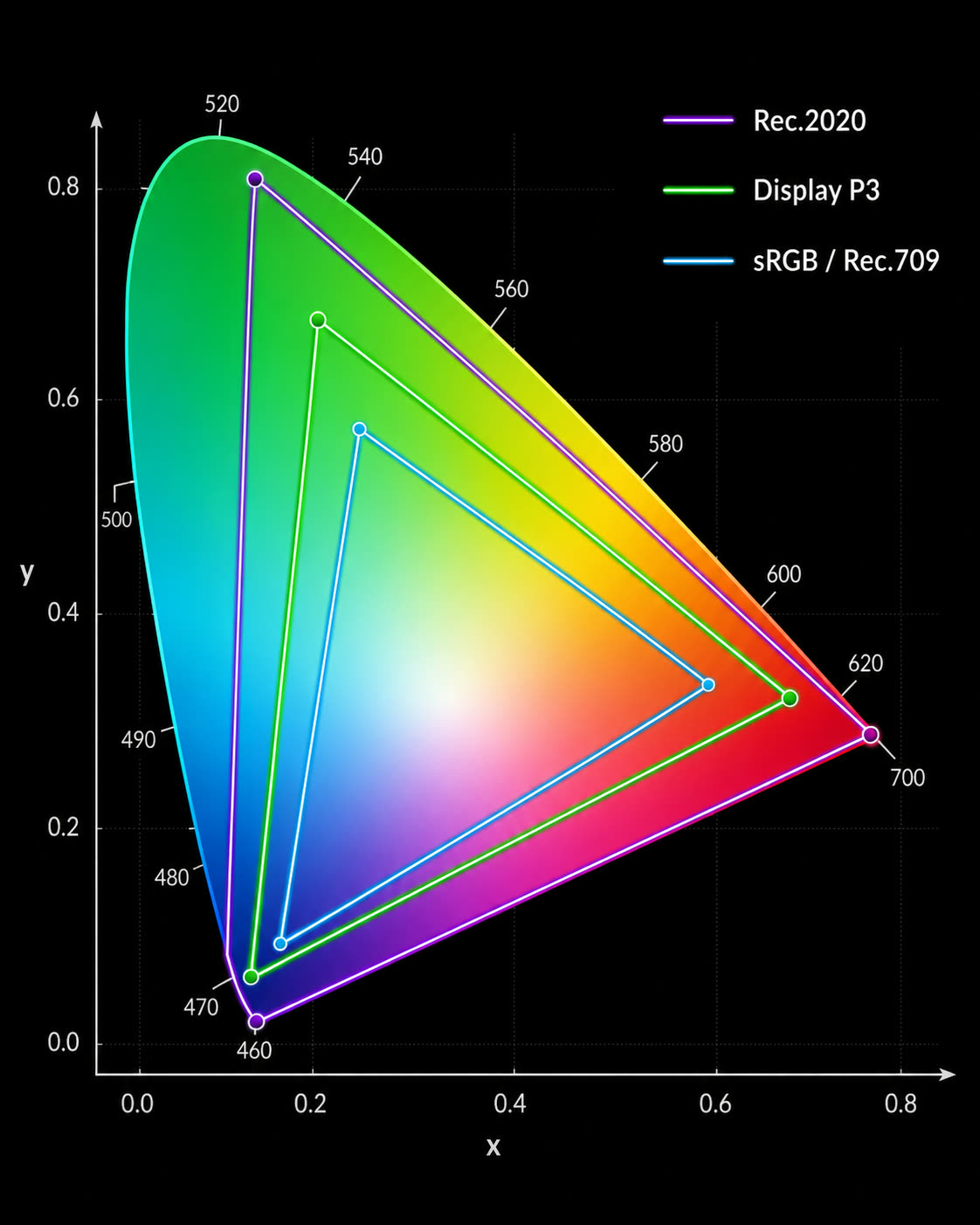
Use the wrong color space and your video looks fine on your screen but oversaturated or oddly dull on someone else’s. For ordinary uploads, Rec. 709 / sRGB is the answer that keeps everyone happy. (If you want to go properly down the rabbit hole on how color works, this video is an excellent deep dive.)
This is exactly the choice hiding behind Chromatose’s render mode: in 8-bit mode the engine works in sRGB, and in the 16-bit modes it works in the wider Display P3 gamut - more room for rich color while you create. What ends up in your exported file is a separate decision, and Chromatose makes it for you - more on that near the end.
2. Transfer function (how brightness is stored)
A quick but important aside. Our eyes don’t perceive brightness in a straight line - we’re far more sensitive to changes in the dark than in the bright. So video doesn’t store brightness linearly. It applies a transfer function (often loosely called gamma ) that bends the numbers to match human perception, which spends precious data where your eyes can actually tell the difference.
You mostly don’t touch this - but it’s why two of the color spaces above can share the exact same colors yet still look different: same gamut, different tone curve. (Fun corner case for the curious: graphics software often does its blending and lighting math in linear light, where the numbers track real physical brightness, because that’s the only way blends and fades come out looking natural. Then it converts back to a perceptual curve for storage.)
3. Bit depth (how many shades)
Bit depth is how finely you can slice the range between black and white.
- 8-bit gives 256 levels per color channel - about 16.7 million colors total. Fine for most video, and what the vast majority of everyday streaming still uses.
- 10-bit gives 1,024 levels per channel - over a billion colors. The payoff isn’t exotic neon shades; it’s smoothness. More steps between values means smooth gradients (sunsets, fog, soft shadows) stay smooth instead of breaking into those visible banding stripes. 10-bit is effectively required for HDR.
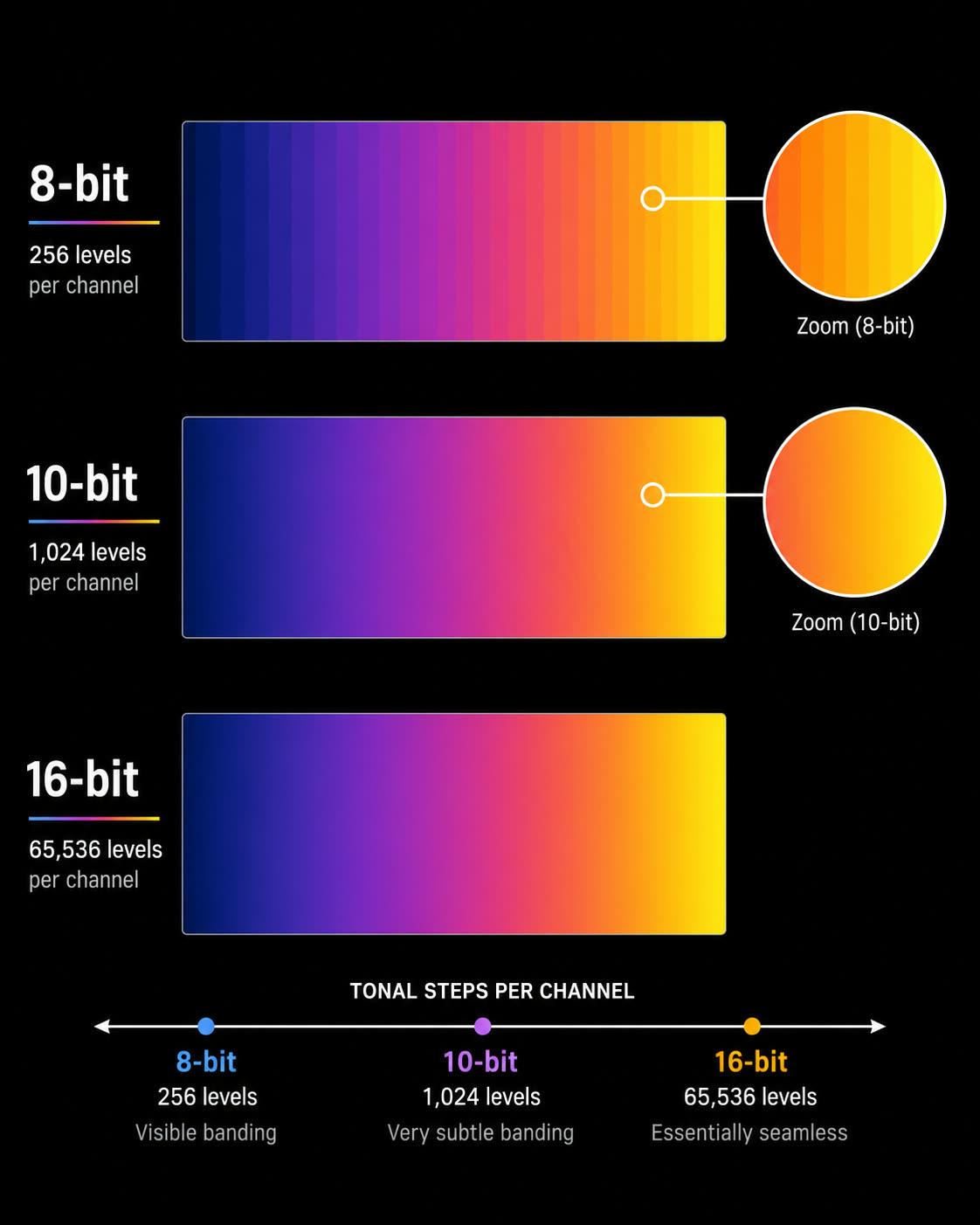
More is not automatically better, though, and there are two good reasons to deliberately pick a lower bit depth.
The first is performance. Every extra bit is more data to move through the render pipeline on every single frame, so a lower bit depth is simply cheaper to compute. If you’re running a heavy patch and want to hold a rock-solid frame rate - especially on an older device - dropping to 8-bit is one of the most effective levers you have. Smaller files and broader compatibility come along for the ride.
The second is style. Banding isn’t always a defect. Those chunky, stepped gradients are the signature of early digital graphics, and if you’re chasing a retro, lo-fi, 8-bit aesthetic, low bit depth is the thing that produces it. Same setting, opposite intent: sometimes you’re avoiding the artifact, sometimes you’re after it.
4. Chroma subsampling (a sneaky shortcut)
This is the one that sounds the most intimidating and is actually based on a charming fact about your own eyeballs: you notice changes in brightness far more than changes in color. So codecs cheat - they store brightness at full resolution but throw away some of the color detail, and you genuinely don’t notice.
Video files store color as YCbCr (sometimes written YUV): one brightness channel plus two color channels.
(A genuinely fun bit of history hides in that split - it’s a holdover from the dawn of color television. Early TV sets were black-and-white and understood brightness only. So when color broadcasts arrived, engineers kept brightness as its own standalone channel and bolted the color information on as two extra channels - that way the millions of existing black-and-white sets could still show the new broadcasts, just in grayscale. That backwards-compatibility hack from the 1950s is why video still separates brightness from color to this day - and it’s why, every time your camera or an app like Chromatose records, the everyday red-green-blue (RGB) values it works in have to be converted into this brightness-plus-color form on the way into the file.)
The ratios you’ll see describe how much color detail is kept:
- 4:4:4 - full color, nothing discarded. Used for mastering and heavy editing (think green-screen keying).
- 4:2:2 - half the horizontal color detail. A common professional middle ground.
- 4:2:0 - color stored at quarter resolution. Looks nearly identical to the eye and is the standard for virtually all delivery - your phone, streaming, social media, Blu-ray. It’s the default for a reason.
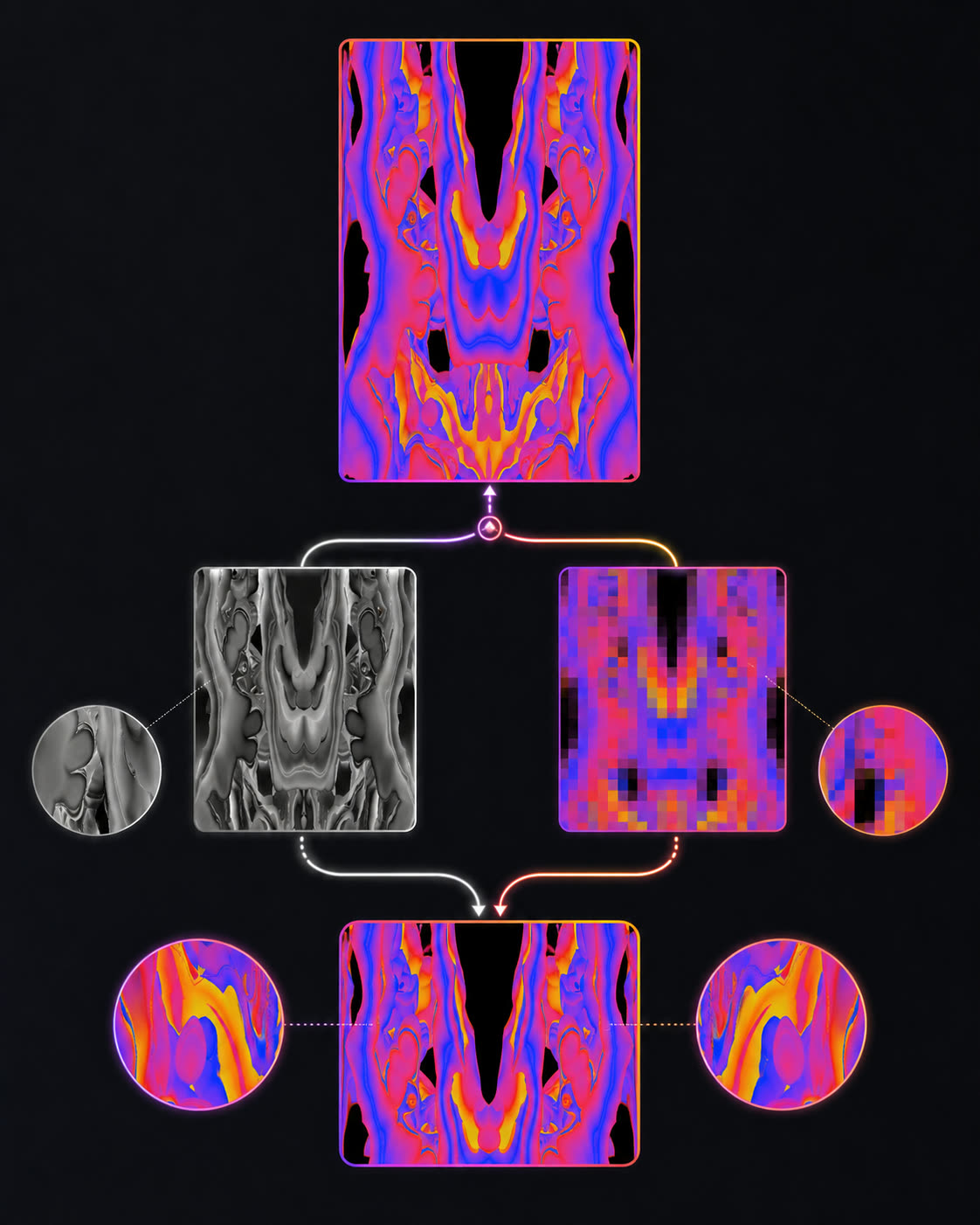
For uploading, 4:2:0 is correct and you should not feel bad about it.
Bonus gremlin: studio swing vs. full swing
One last color trap, because it can cause a very specific and maddening bug. There are two conventions for using the 0-255 range of 8-bit video. Full swing uses the whole range: 0 is pure black, 255 is pure white. Studio swing (a holdover from analog broadcast) reserves the ends, mapping black to 16 and white to 235. Mismatch the two and your blacks come out milky grey or your whites get blown out and clipped. If a video ever looks subtly washed out or harshly contrasty for no reason, a swing mismatch is a prime suspect.
HDR (and EDR, and Dolby Vision)
HDR - High Dynamic Range - is the leap that makes highlights genuinely bright and shadows genuinely deep, with vivid color in between, instead of everything squeezed into a narrow middle. (Apple sometimes calls its display-side handling EDR, Extended Dynamic Range.)
Here’s the mental model that makes it click: in SDR, every pixel’s brightness sits on a 0.0 to 1.0 scale, where 1.0 is the brightest white the format allows. HDR keeps that 0.0-1.0 range but lets values climb above 1.0 - up to whatever peak headroom the display supports - and that room above 1.0 is exactly where those dazzling highlights live.
HDR isn’t a single switch - it’s a stack that has to line up: 10-bit color depth, a wide gamut like Rec. 2020, and a special HDR transfer function - either PQ (used by HDR10 and Dolby Vision) or HLG (favored for broadcast). Dolby Vision is a premium proprietary flavor on top that tunes brightness scene by scene.
For a long time, HDR was mostly academic for everyday creators - most streaming was plain 8-bit SDR, and there was nowhere to put true HDR even if you made it. That’s changing fast. Instagram now supports HDR video, and YouTube does too - though getting YouTube to actually ingest and display HDR correctly is something of a black box, with a fair bit of trial and error involved. (If you want to wrestle it into submission, this video digs into the specifics.) The upshot: the gorgeous wide-gamut, high-bit-depth color a modern screen can show is finally something you can both make and share.
So how do you get pristine quality? Meet ProRes.
We established the hard rule earlier: lossy delivery codecs (H.264, HEVC, AV1) always throw a little away. So what do you do when “a little” isn’t acceptable - when you’re going to re-edit the footage, or you want a real master copy to archive?
You step off the lossy delivery ladder entirely and use an intermediate codec. The most common one (especially for Apple platforms) is Apple ProRes .
A precise, honest word on terminology: ProRes is not strictly lossless in the mathematical sense - it’s what the industry calls “visually lossless.” It still compresses, but so gently, at such a high bitrate, that you can edit, re-export, and re-edit it many times over without visible degradation. That’s the whole point of an intermediate codec: it’s built to survive editing, where a delivery codec quietly degrades a little more each time you re-encode it. (If you need genuine, mathematically perfect quality, you’d go all the way to truly lossless or uncompressed formats - but those are so colossal they’re impractical for almost everyone.)
The cost is size, and it’s not subtle. A ProRes file can easily be five to ten times larger than the equivalent HEVC - sometimes far more. That’s the trade you’re making: you spend a lot of disk space to keep your options open.
Which leads to the cleanest rule of thumb in this entire article:
Master in ProRes when you’ll edit again or want a pristine archive. Export to HEVC or H.264 for the final thing you upload.
Do your real work and keep your master in ProRes; produce a small, lossy delivery file from that master whenever you need to share it. Never edit a delivery file and re-export it as another delivery file if you can help it - that’s compressing something that was already compressed, and the artifacts pile up fast.
This is exactly why Chromatose’s recorder puts the choice right in front of you as a Video Quality setting: pick Studio (ProRes) when you want a true master to edit or archive, or Social (HEVC) when you’re making something to upload. Same visuals, two different jobs.
The cheat sheet: what should I actually pick?
Bringing it all home. Match the job to the settings:
Uploading to Instagram, TikTok, or YouTube (the common case):
- Codec: HEVC (smaller) or H.264 (most compatible).
- Container: MP4 or MOV.
- Color: Rec. 709 / sRGB, 8-bit, 4:2:0.
- Bitrate: VBR, around the platform’s ceiling (e.g. ~25 Mbps), not wildly above it.
Mastering or archiving (you’ll edit again or want it pristine):
- Codec: ProRes.
- Container: MOV.
- Color: as wide and deep as your source supports (4:2:2 or 4:4:4, 10-bit if you have it).
- Accept the large file size - that’s the price of keeping quality.
HDR delivery (modern OLED TV, capable screen):
- Codec: HEVC, Main 10 profile.
- Color: Rec. 2020, 10-bit, 4:2:0.
- Transfer: an HDR curve (PQ or HLG).
If you only remember the shape of it: compressed for sharing, ProRes for keeping. Everything else is just making those two choices well.
How Chromatose takes the guesswork out
I promised the full recipe earlier - here it is. We met the three render modes up top; this table is exactly what each one configures behind the scenes, so you can see there genuinely is no guesswork left for you to do:
| Setting | 8-Bit SDR | 16-Bit SDR | 16-Bit HDR |
|---|---|---|---|
| Container | MOV | MOV | MOV |
| Codec | HEVC | HEVC | HEVC, Main 10 |
| Color bit-depth | 8-bit | 10-bit | 10-bit |
| Color space | Rec.709 | Rec.709 | Rec.2020 |
| Transfer function | Rec.709 | Rec.709 | HLG |
| Chroma subsampling | 4:2:0 | 4:2:0 | 4:2:0 |
| Bitrate | VBR, 25 Mbps max | VBR, 25 Mbps max | VBR, 25 Mbps max |
(The bit depths are worth a glance: 8-Bit SDR delivers an 8-bit file, while both 16-bit modes deliver 10-bit - 1,024 shades per channel instead of 256. That’s a real reason to choose 16-Bit SDR over 8-Bit SDR even for everyday uploads: the same Rec.709 colors, but far finer gradient steps, so fades and skies band less.)
That said, as covered back in the bit depth section, 8-Bit SDR remains a deliberate choice, not a downgrade: it’s lighter on performance, produces smaller and more broadly compatible files, and it’s how you get that banded, retro look on purpose.
A few things worth calling out from those recipes:
- SDR exports use the standard Rec.709 / sRGB color space (the two share the same primaries) - and that’s deliberate, for compatibility. Nearly every app, editor, and platform out there assumes sRGB, so this is the format that looks right everywhere you take it. Even when you’re creating in wide-gamut 16-bit, the SDR export is converted down to this safe, universal space so it never comes out looking wrong on someone else’s screen.
- HDR export uses Rec.2020 with the HLG transfer function - the wide-gamut, high-dynamic-range recipe, for when you want the full richness a modern display can show (on a platform that supports it).
- Everything else - HEVC, the
.movcontainer, 4:2:0 subsampling, the ~25 Mbps VBR cap tuned to what platforms actually accept - stays constant, because those are simply the right calls for delivery.
And the codec itself - HEVC versus ProRes - is the Video Quality choice from the very top: Social (HEVC) wraps these settings into a small, shareable file, while Studio (ProRes) swaps in the near-pristine master codec instead. Pick the job; the technical details are already right. No dialog full of acronyms - which is rather the opposite of where this article started, and very much the point.
One last tip: heading into a VJ app?
If your high-quality export isn’t the final destination - say you’re loading it into a VJ app to play back live during a set - there’s one more step worth taking. Use a separate conversion tool to transcode your file to HAP first.
HAP is a codec built specifically for real-time playback: it’s decoded on the GPU (your graphics chip) instead of the CPU, so a VJ app can play far more layers, at higher resolutions, without dropping frames. For live visuals, that GPU-accelerated playback is the difference between buttery-smooth and stuttering - it’s the standard move for getting heavy footage to perform reliably on stage.
That’s the fog, cleared
None of this is genuinely hard - it’s just under-explained, wrapped in acronyms that assume you already know the answer. Strip that away and it comes down to a handful of honest trades: detail versus file size, compatibility versus efficiency, sharing versus keeping. Once you can see the trade behind each setting, the export dialog stops being a wall of jargon and starts being a set of decisions you’re equipped to make.
All of this went into building a video recorder you can trust to get it right. If you’d like to make something worth exporting in the first place - real-time visuals you create with your own hands, right on your iPhone or iPad - that’s what Chromatose is for. Go play.